How Go2Gate ownership works
Why some airports sit outside Go2Gate — and the controls for hiding or removing them.
Go2Gate is built around the scenery, aircraft and liveries you own — payware, freeware, Microsoft Partner and Asobo’s handcrafted airports — matched against the real-world airline network across the globe. That way you fly genuine scheduled routes with the real aircraft, in the real livery, between real airports. That’s the whole point: full immersion. When a flight shows ready to fly, it means you own everything it needs — the aircraft, its livery, and both the departure and arrival airport.
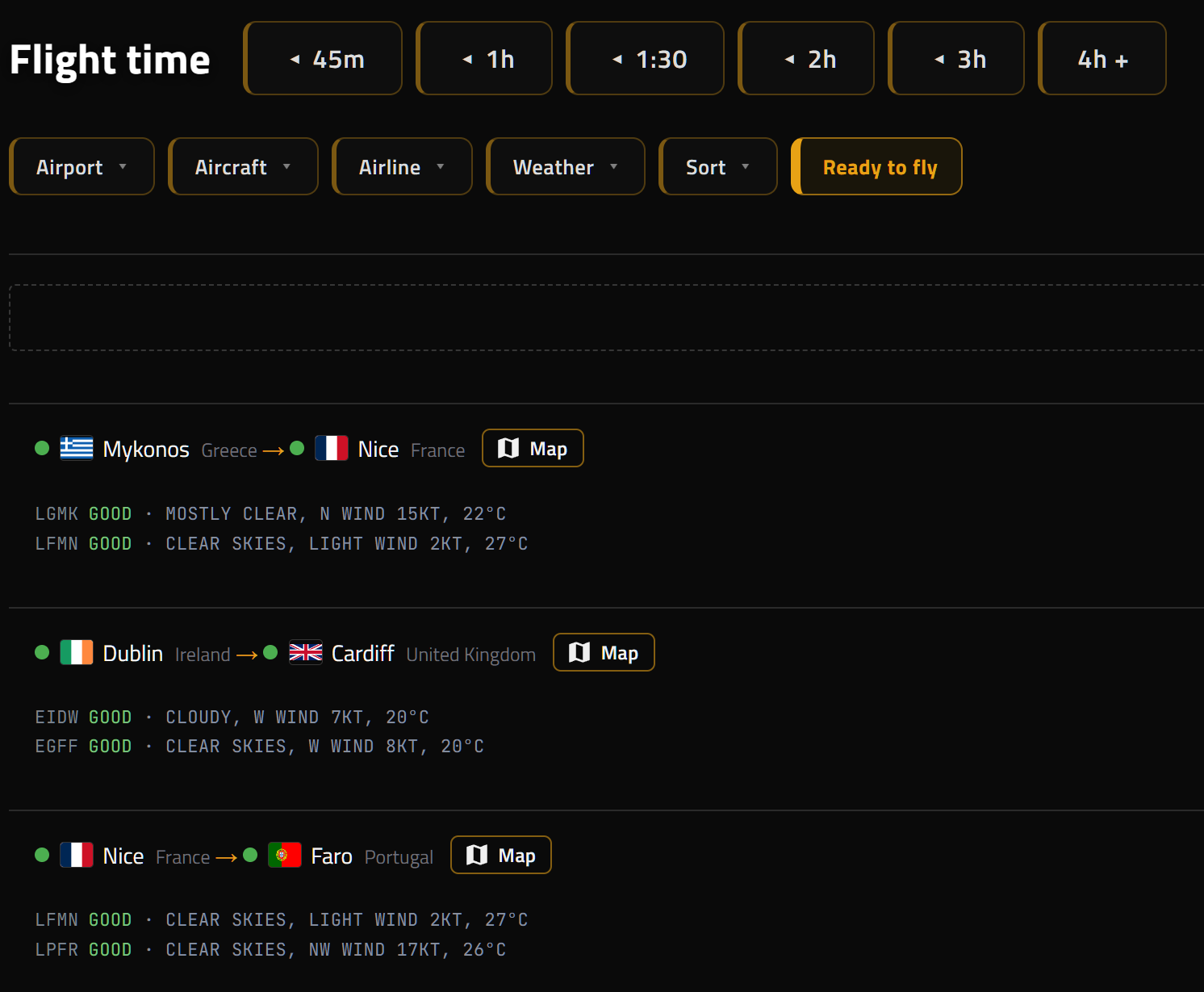
If an airport isn’t shown as owned, we won’t offer it as ready to fly — because at one end you’d be departing from, or arriving at, default scenery, and that breaks the immersion. You can still fly there whenever you like; this just keeps that “ready to fly” badge meaning what it says.
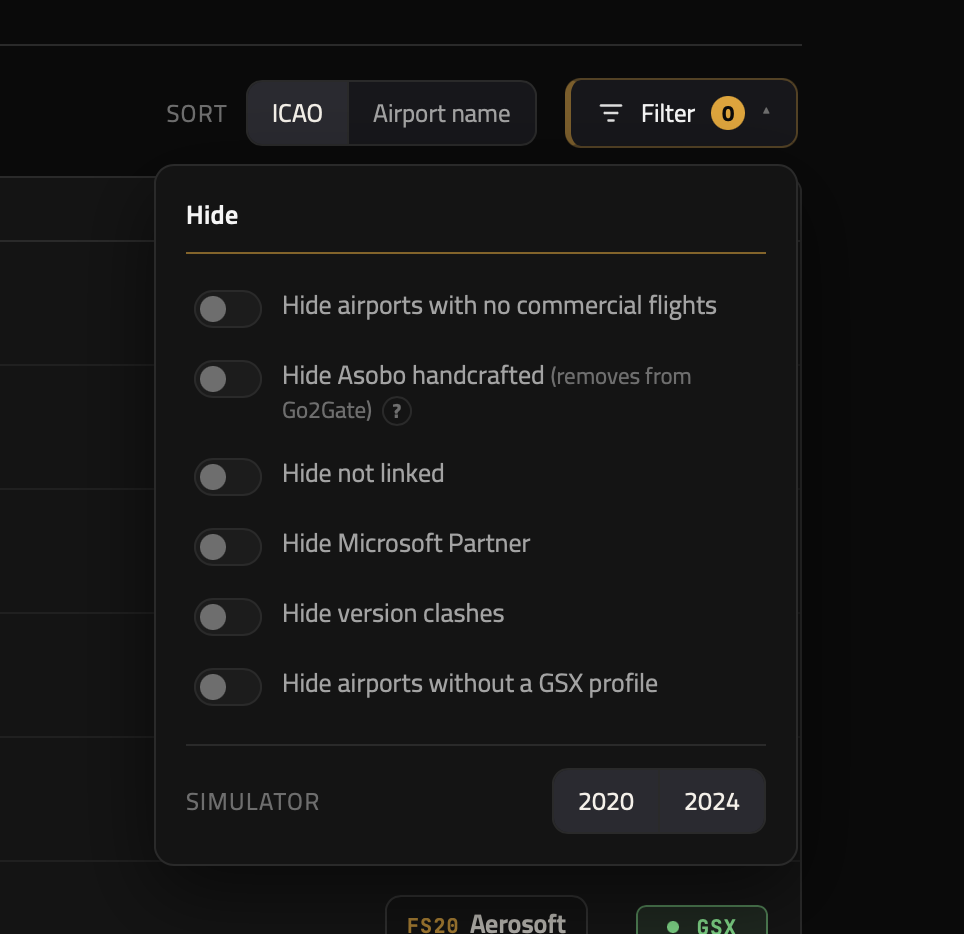
Just hiding an airport. The Filter panel lets you tidy airports out of your library list — hide ones with no commercial flights, hide not-linked scenery, and so on. Those are purely cosmetic: the airports stay owned and their ready-to-fly flights keep showing.
One toggle in that panel is different: Hide Asobo handcrafted (removes from Go2Gate). Asobo’s handcrafted airports ship with the sim, and some were among the first ever built — a few are showing their age next to modern payware. Flip this and all of them switch off together and stop counting as owned, so you won’t be offered ready-to-fly flights that depend on them. Plenty of people are happy to leave it alone and fly them — your call, and you can switch it back any time.
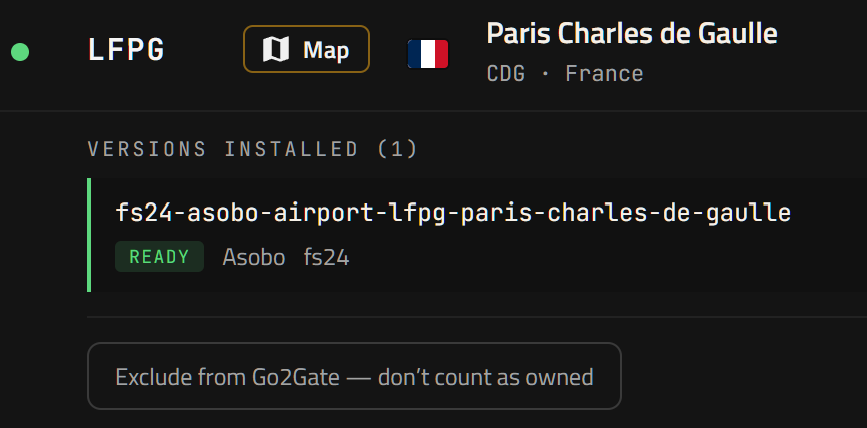
Removing a single airport. Any airport has a remove button on its own page — use it to take just that one out of Go2Gate so it no longer counts as owned: